TacticsBoard has a new look
TacticsBoard looks different now. The colours have changed, but the bigger change is where things are. Save and load sit above the pitch, your drills show up as pictures, and the club page tells you straight away what's coming up in the next week. These are the changes a coach will notice first.
A green board and an orange main button
The base is the dark green of a tactics board. Orange is kept for the main action on each screen, like Save in the planner or Invite a coach on the club page. If you're looking for what to press next, look for the orange.
Dark is still the default theme. You can switch to light under Theme in the menu, and the choice is remembered. Headings use a new wide, heavy typeface, so you can see how a page is laid out at a glance.
Save and load above the pitch
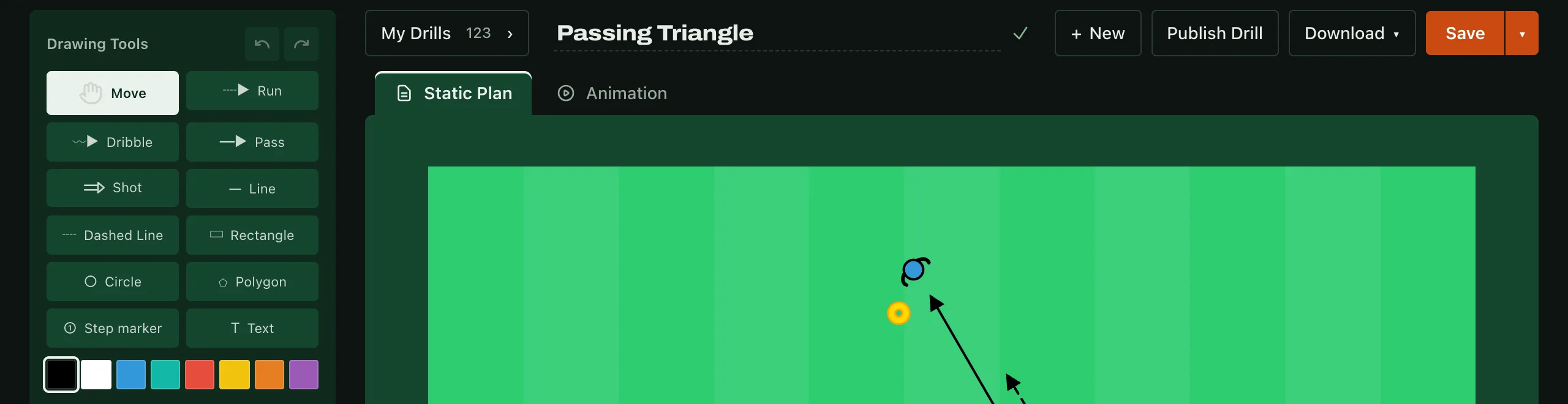
On a computer, the file actions have moved from the bottom of the tool sidebar to a row above the pitch, next to the drill's name. From left to right: My Drills, the drill name, + New, Publish, Download (PNG or PDF) and an orange Save. The arrow next to Save gives you Save as new when you want a copy of an edited drill.
The modes are tabs on the top edge of the pitch frame: Static Plan and Animation. You can always see which one you're in, and the drill name no longer gets cut off on a narrower screen.
On a phone the planner works as before. There's a separate post about that.
My Drills in one click
This is the biggest change. Opening a saved drill used to mean the Load Practice button and a small list of names where long titles got cut off. You had to recognise the drill by its name.
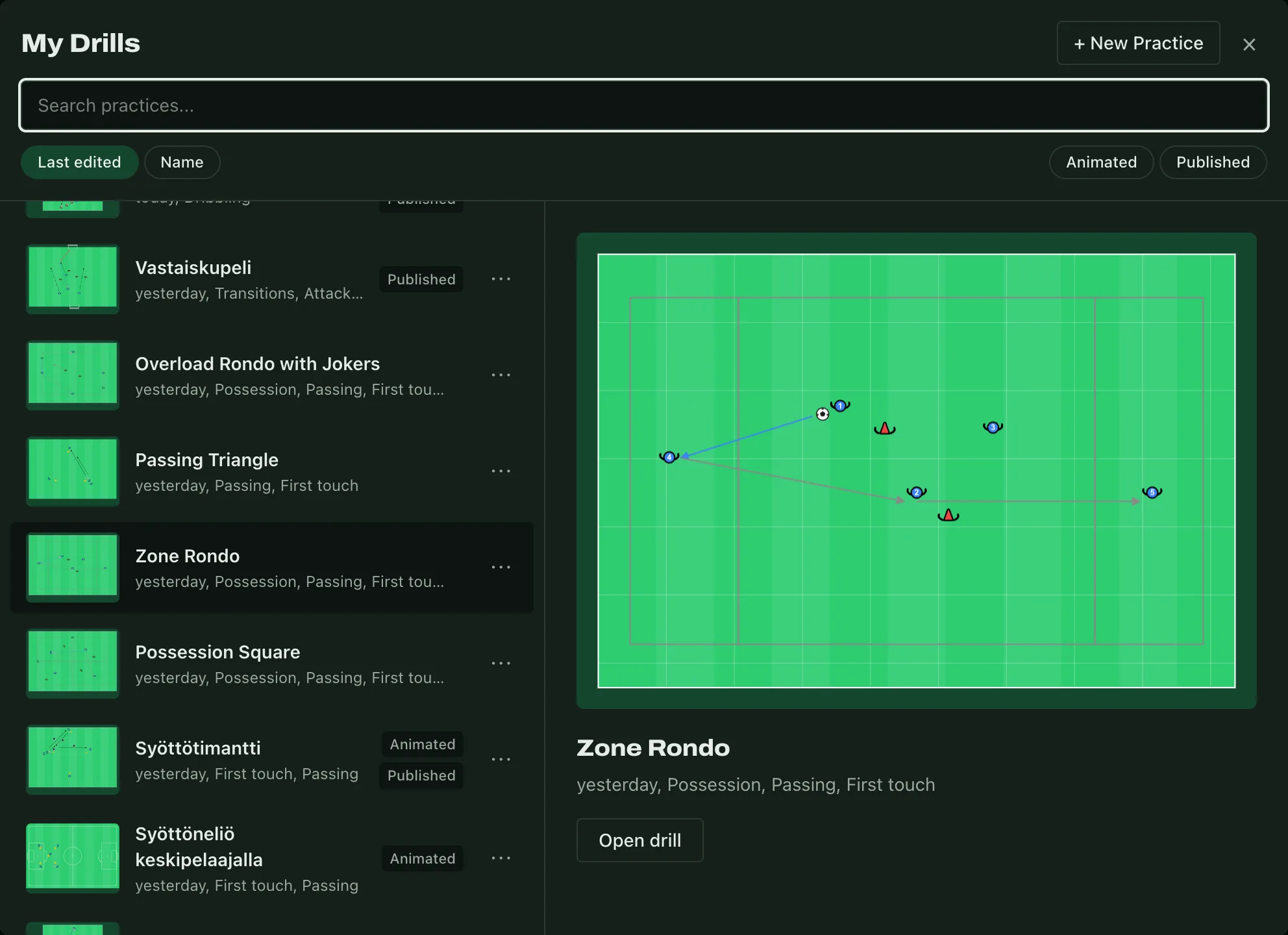
Now My Drills opens with one click from the top bar, or with Ctrl + O (⌘ + O on a Mac). Every drill in the list is a picture drawn from the drill's own data, so unpublished drills get one too, and it's always up to date. Hover over a drill or move through the list with the arrow keys and a large preview of the whole pitch appears on the right. Click a row, or Open drill under the preview, to open it.
You can sort the list by last edited or by name, and the Animated and Published chips narrow it down. The search box looks through the names.
Sessions as a timeline
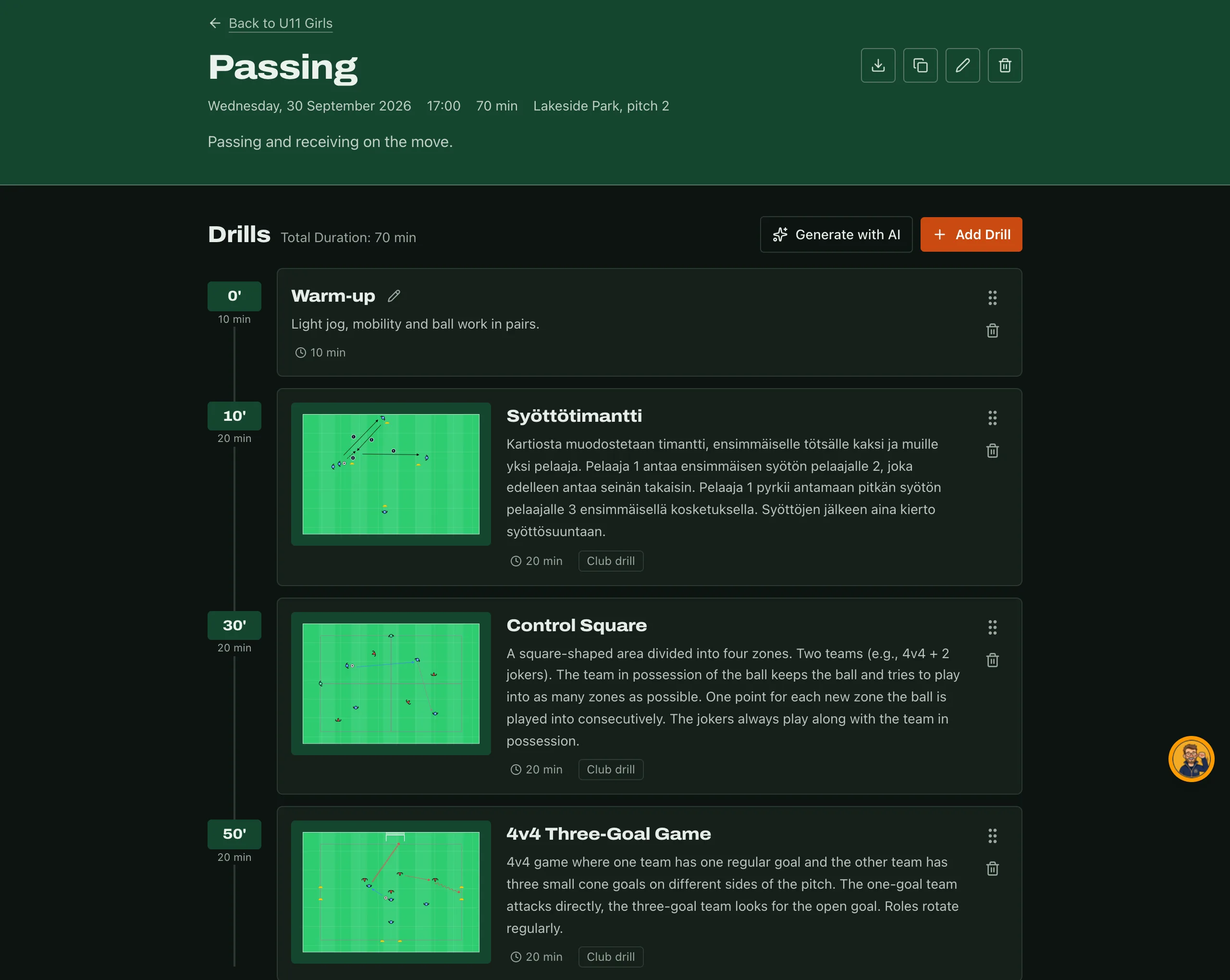
The drills in a session now sit on a timeline, and each one shows the minute it starts. The minutes come from the order and the durations of the drills. Move a drill or change a duration and the start times update right away.
On the Sessions page, upcoming and past sessions are in groups of their own. Each row shows the date and small pictures of the drills.
The club page shows the week ahead
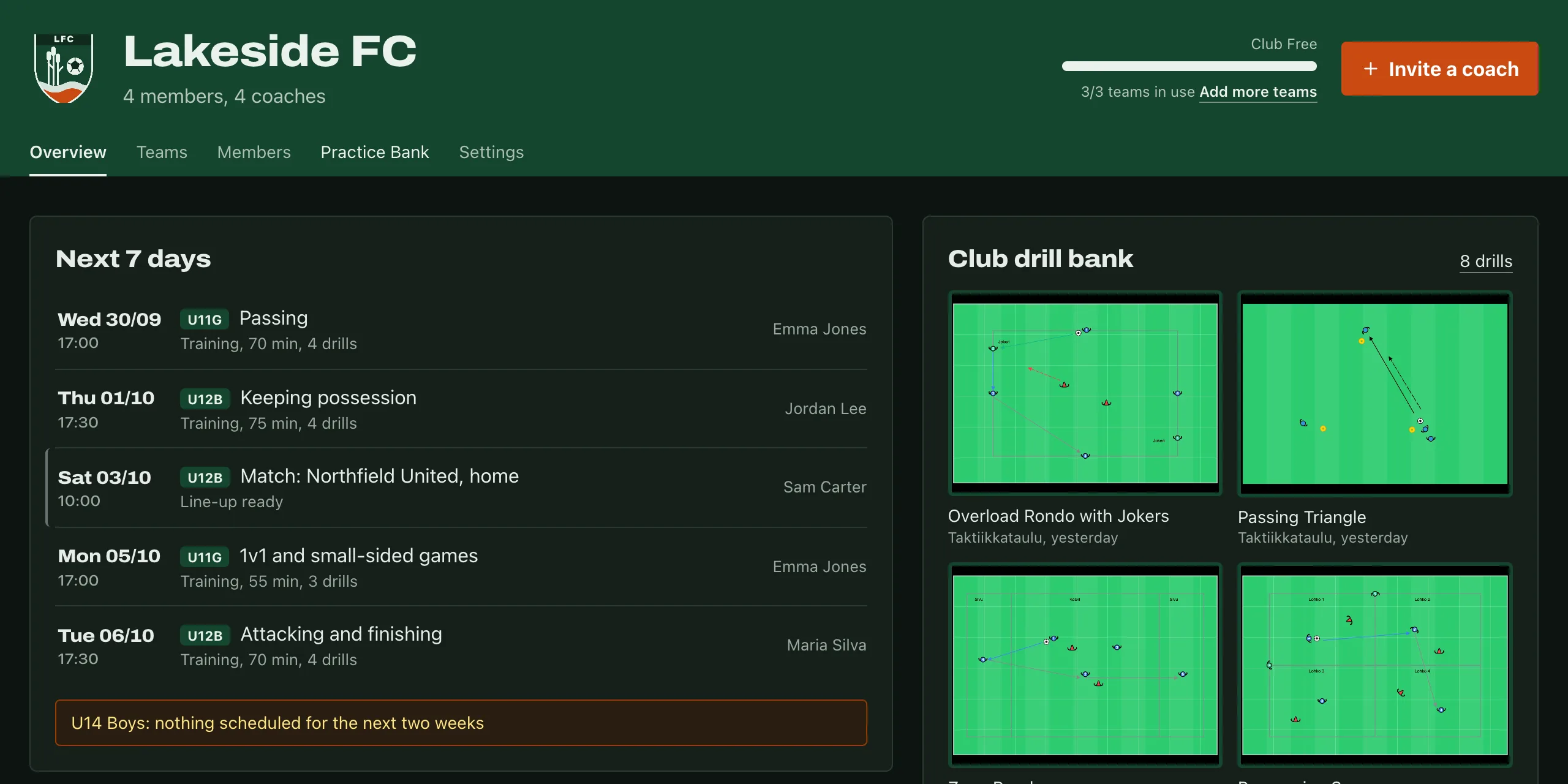
What the club's Overview tab shows depends on your role. An admin sees the whole club's next 7 days: every team's sessions and matches in order. Matches stand out with a rule on the left and a Match prefix, and a missing line-up is highlighted in yellow. If a team has nothing scheduled for two weeks, you get a note about it.
A coach sees their own teams' next session and next match first.
Your own clubs first on the Clubs page
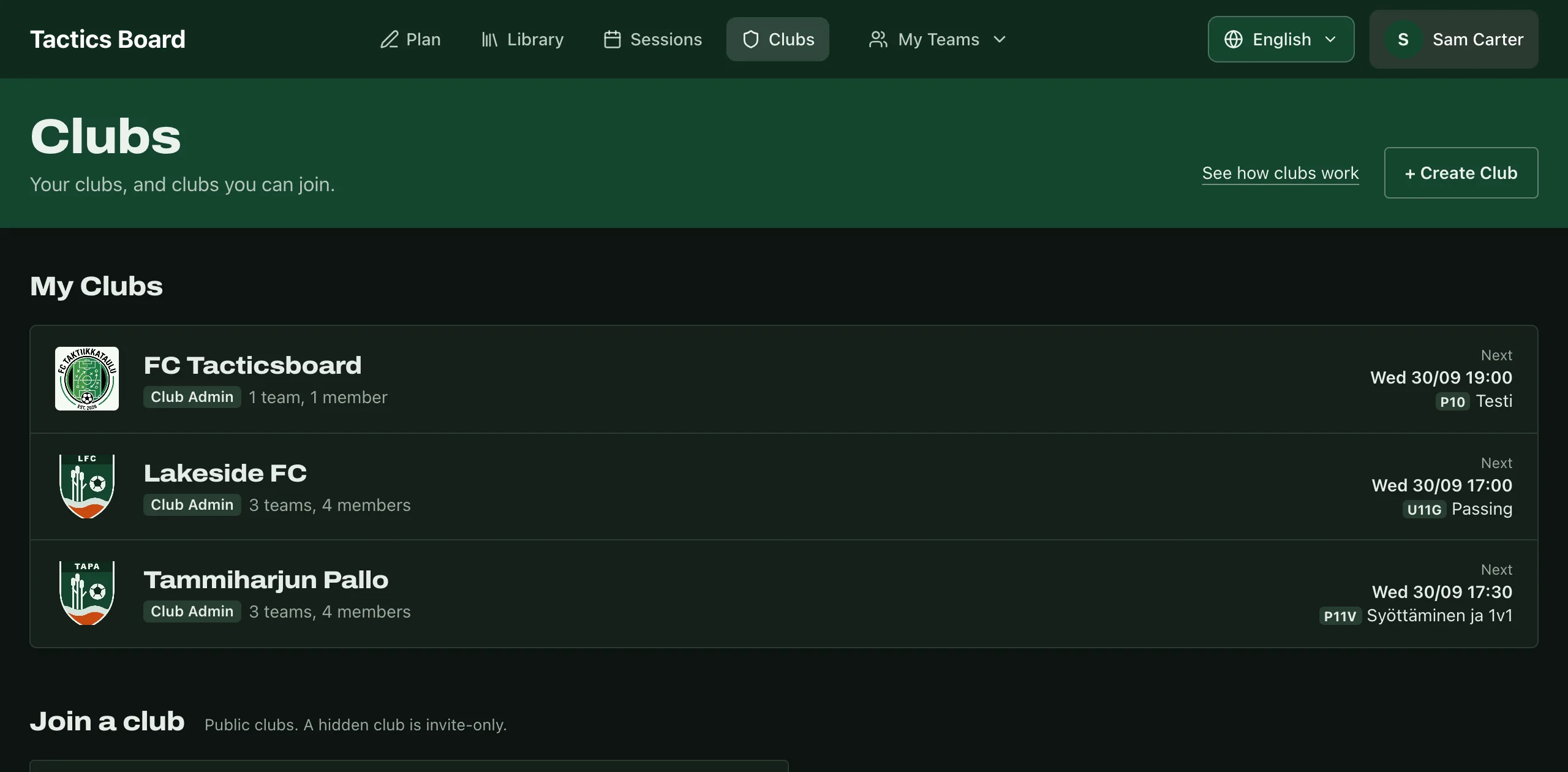
The Clubs page starts with pending invitations and then your own clubs. Each club shows your role, how many teams and members it has, and the next event. The Join a club search is further down, and results only appear once you type in the search box.
Library filters as chips
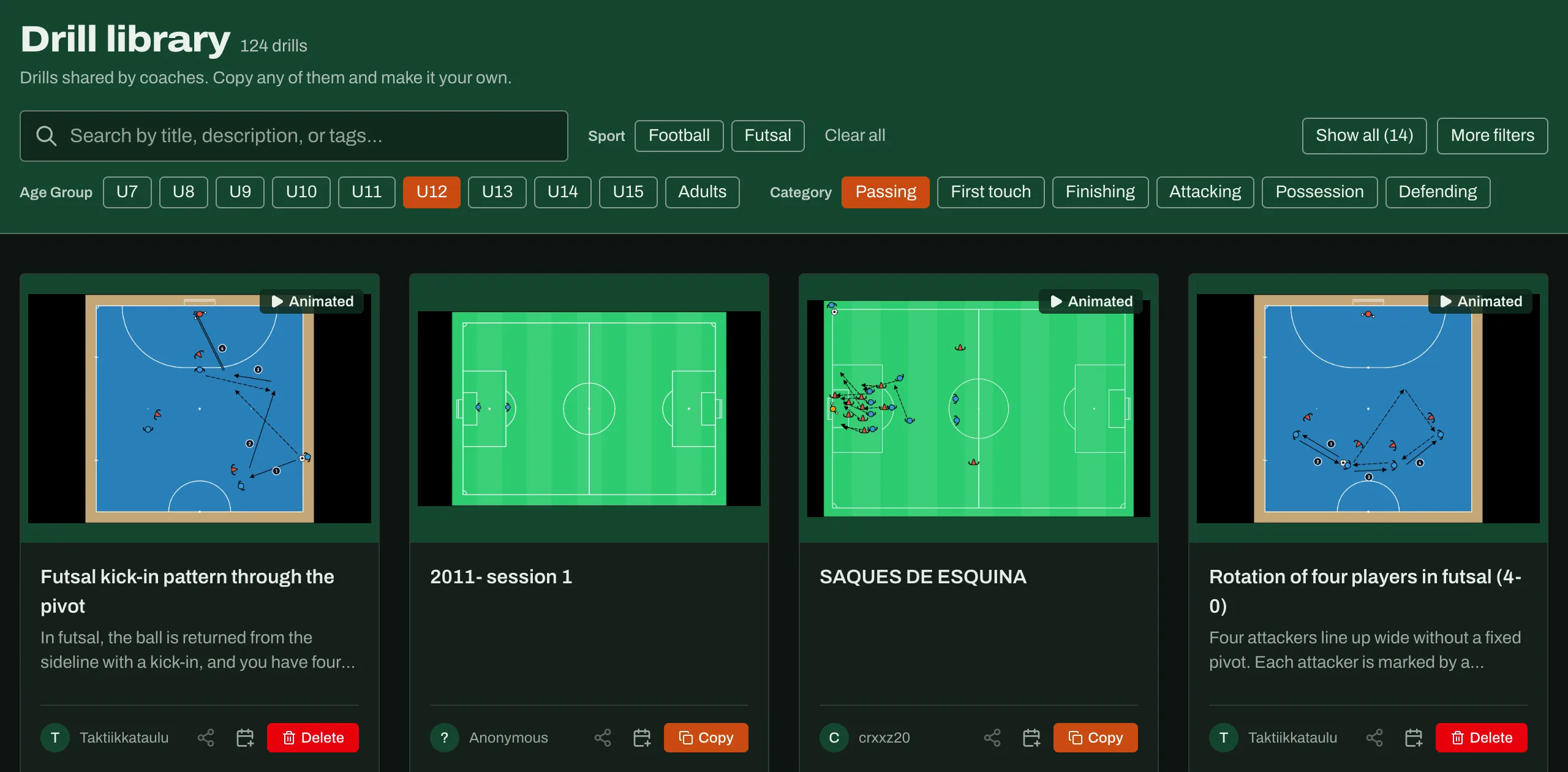
The library filters are chips now: click age groups and categories on and off. The search runs straight away, so there's no separate search button anymore. The most-used categories come first, and Show all brings up the rest. Player count and author are under More filters.
It isn't all finished yet
Some screens are still being polished, and a detail here and there may feel clumsy for a while. Fixes go out all the time, so you won't have to wait for the next big update.
Tell us what you think
If something's harder than before, something's missing or something's clearly better, we'd like to hear about it.
You can also email tuki@taktiikkataulu.fi. If it's about a particular screen, a screenshot helps.