How to set up your club in TacticsBoard
When every coach in a club plans sessions their own way, good drills stay in one coach's notebook and nobody sees what the team next door is doing. With the club features in TacticsBoard, the whole club shares one drill bank, every team has its own calendar, and line-ups are there for all the coaches to see. This guide walks through setting up a club from start to finish, using a made-up club called Lakeside FC.
1. Create the club
Go to the Clubs page and press "Create Club". Give the club a name and a short description, then decide two things:
- Public or private. A public club shows up in search. A private one is visible to its members only.
- How people join. "Invite only" means an admin invites every member. With "Request and approval", coaches can ask to join and an admin approves them.
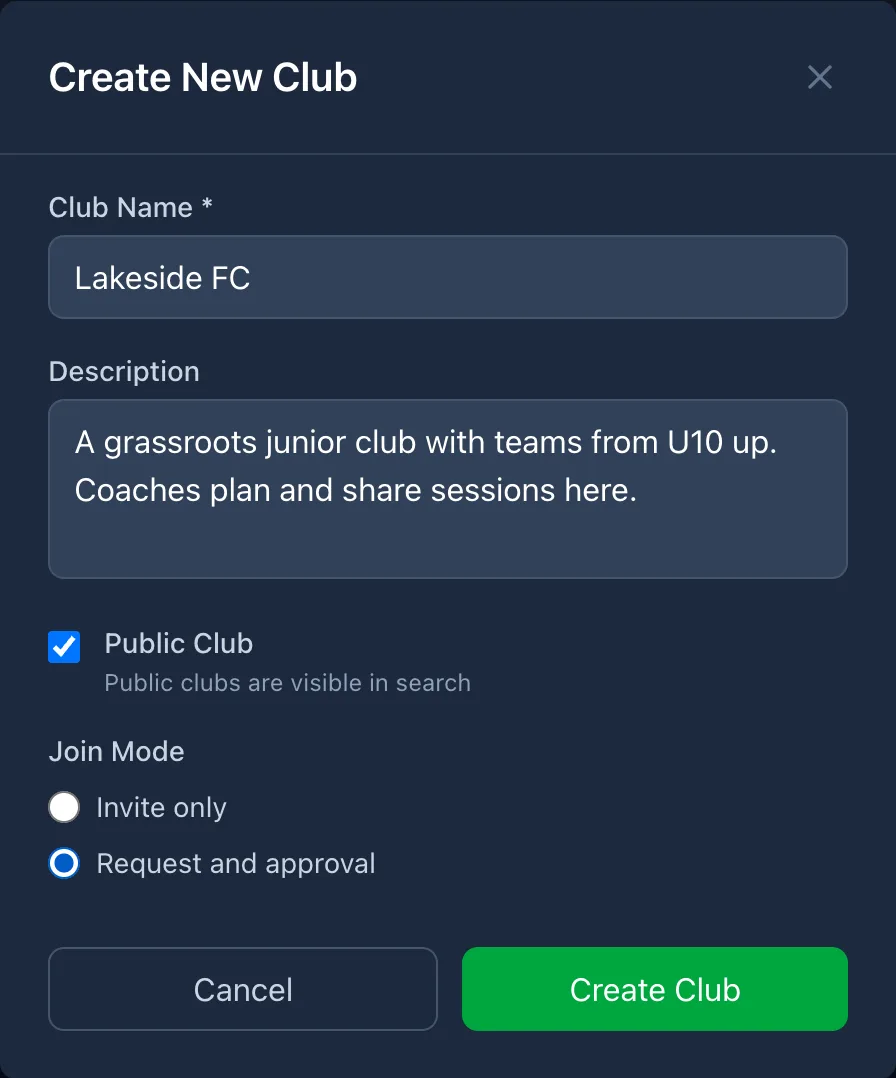
You can add the club logo later in Settings. Whoever creates the club becomes its admin.
2. Add your teams
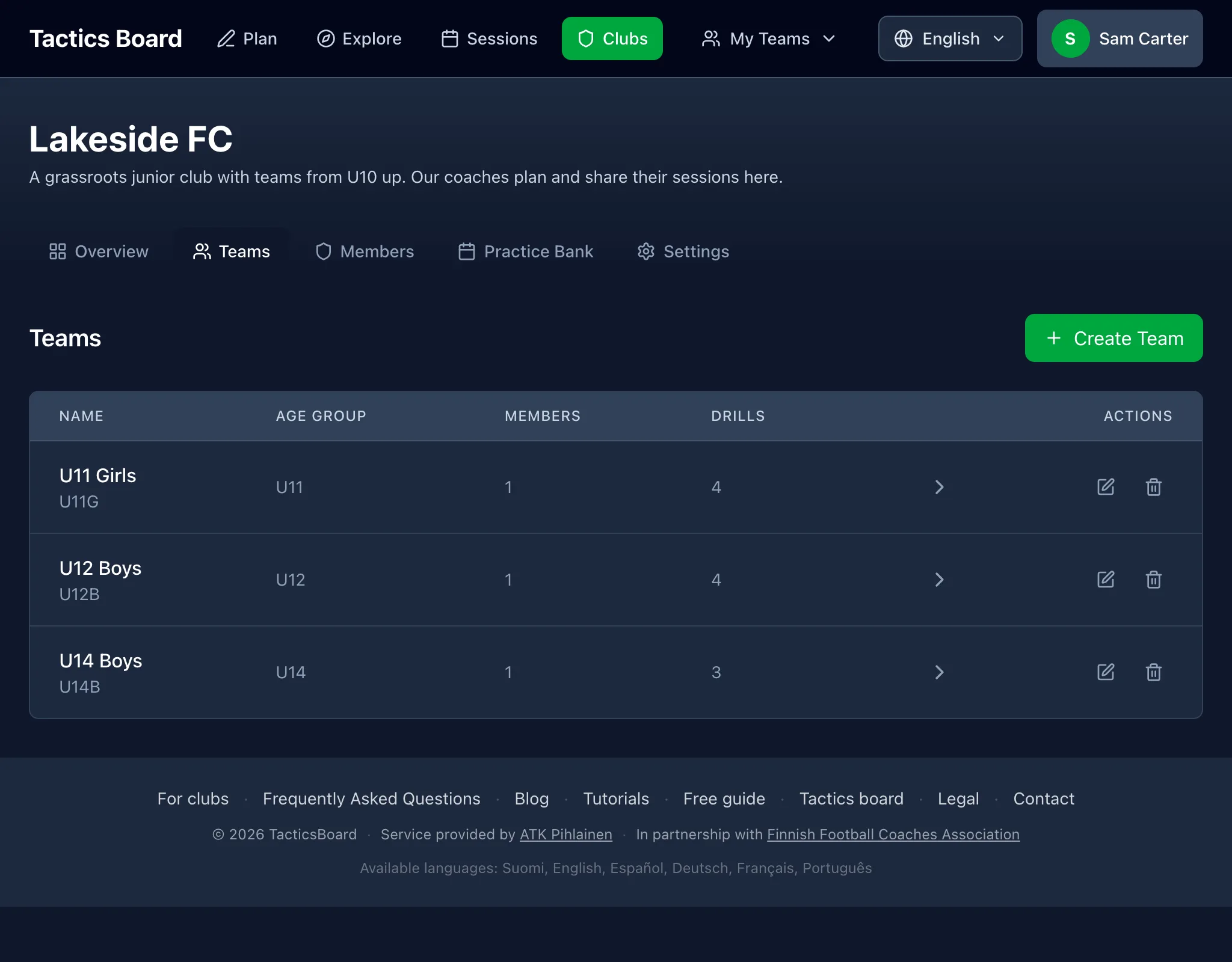
Admins create teams on the Teams tab, each with a name, a short name and an age group. A free club can have three teams; bigger clubs have paid plans.
3. Invite your coaches
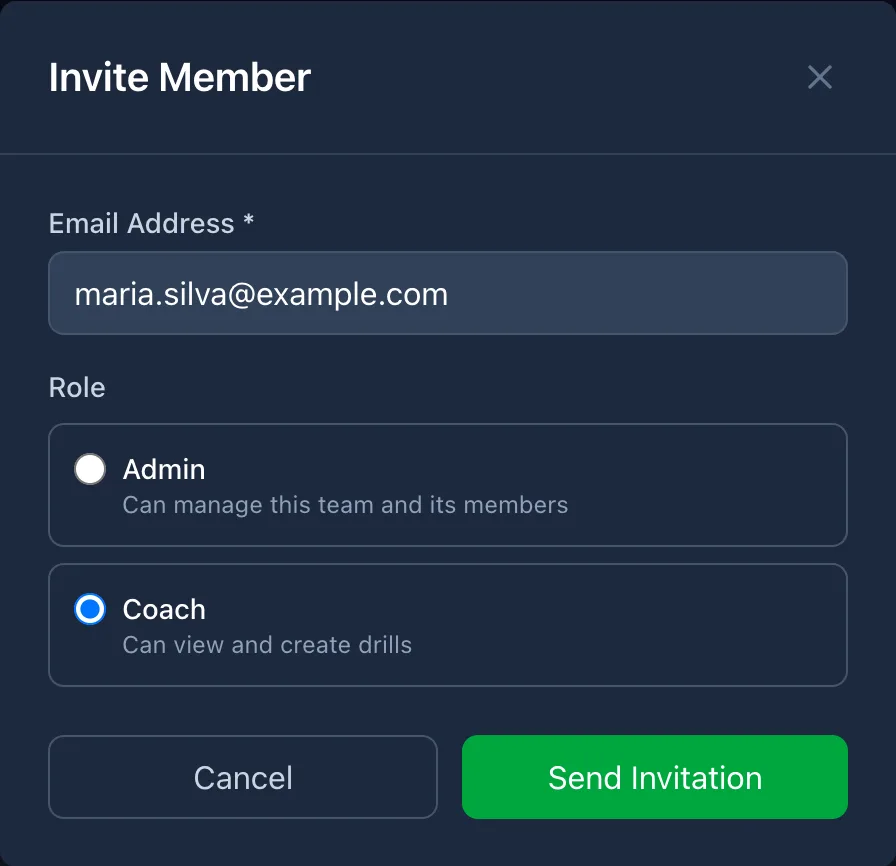
Invite coaches by email from the team's Members tab and pick a role for each:
- Admin manages the team and its members.
- Coach plans drills and sessions and adds matches to the calendar.
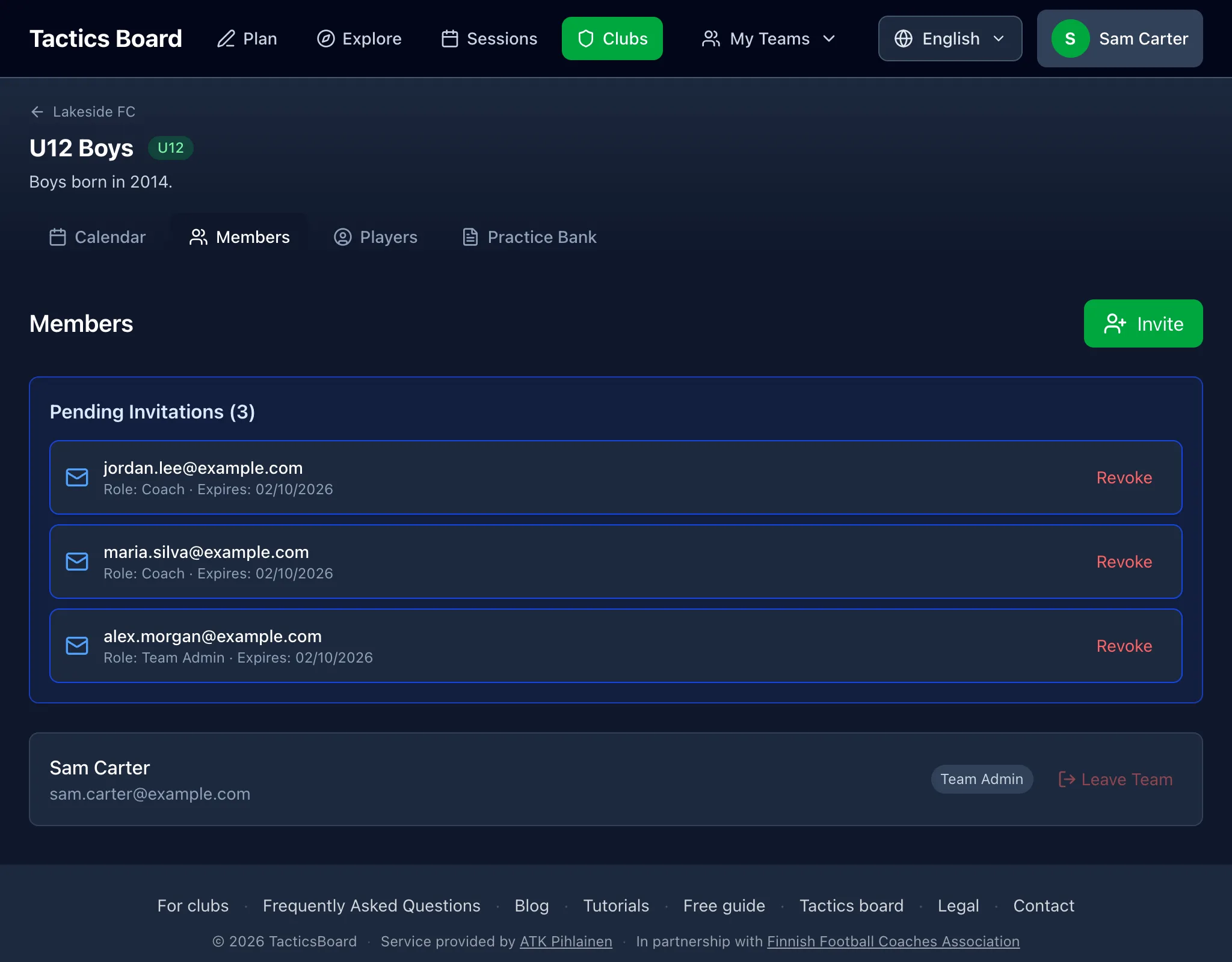
A read-only Viewer role can be given to a member afterwards. Invitations last seven days. The coach signs in with the address the invitation went to and joins straight from the link. Until then the invitation shows as pending, and an admin can revoke it.
If the club is public and people join by request, a coach can also find the club on the Clubs page and ask to join. They pick a team in the request, an admin approves it on the club's Members tab, and the coach joins that team.
4. Build a shared drill bank
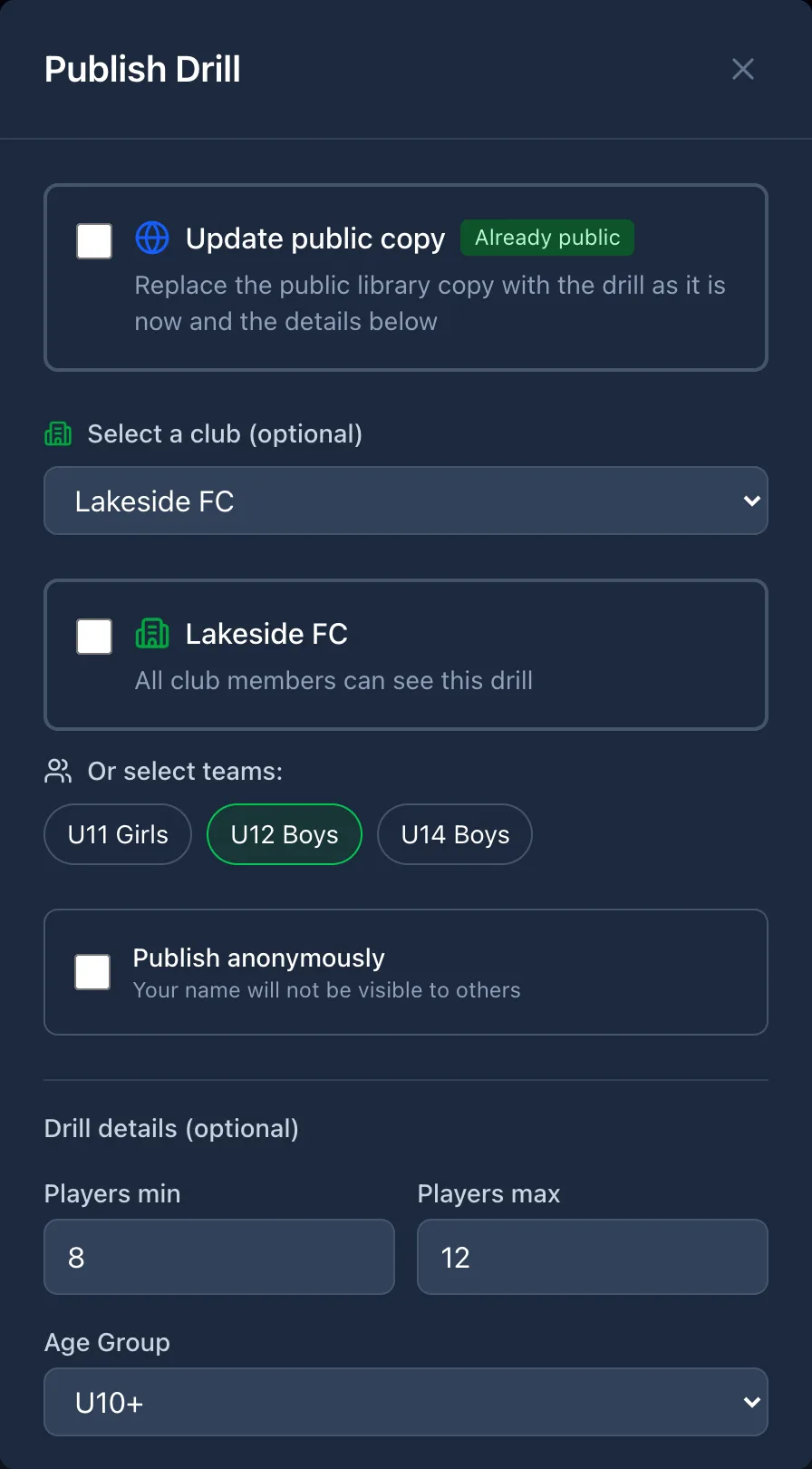
Draw drills in the editor as usual. When one's ready, share it from the editor's Publish button with the whole club or with selected teams.
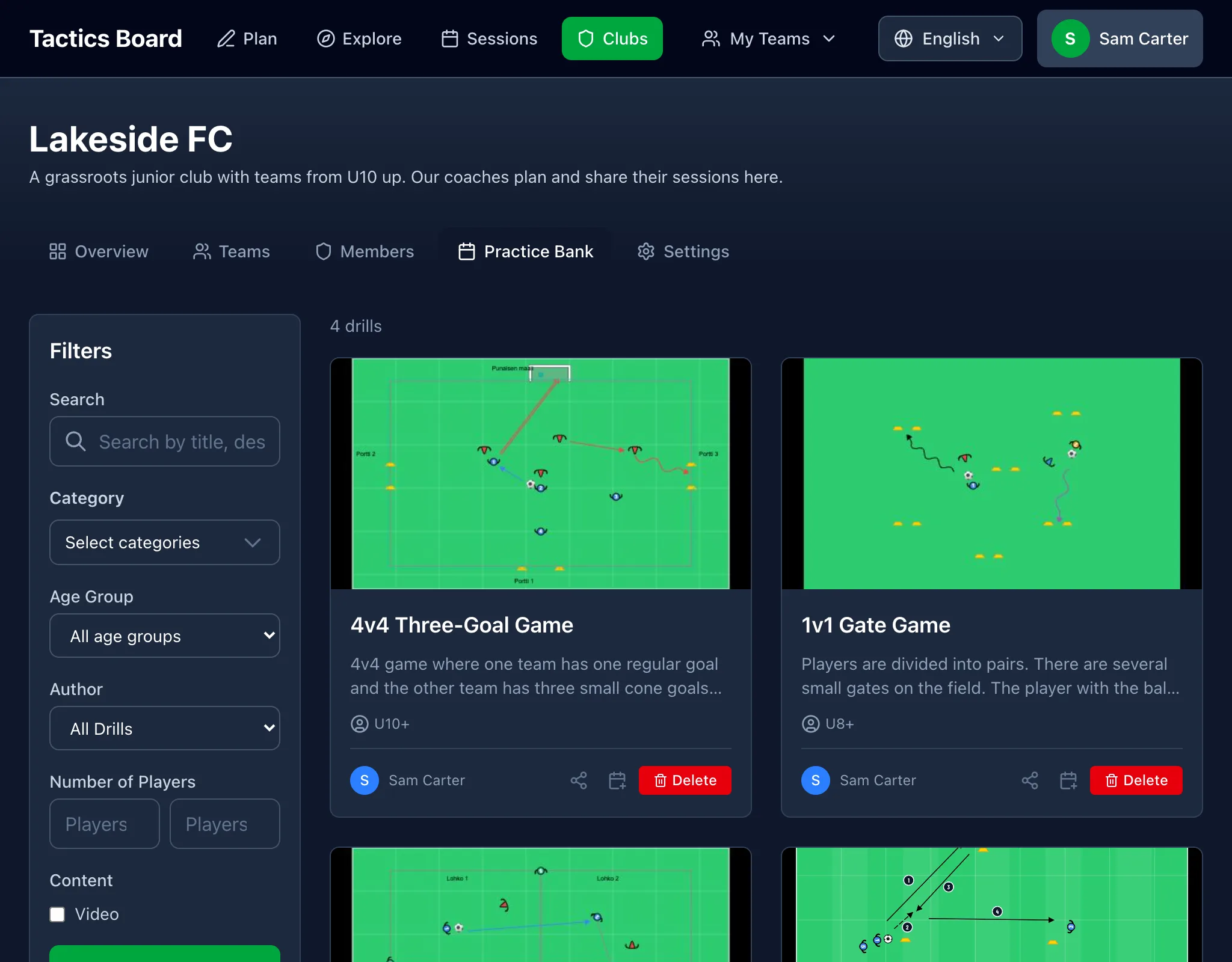
The club's Practice Bank collects everything that has been shared. A coach sees the drills shared with the whole club plus those shared with their own team, and can filter by age group, team or author.
5. Plan sessions in the calendar
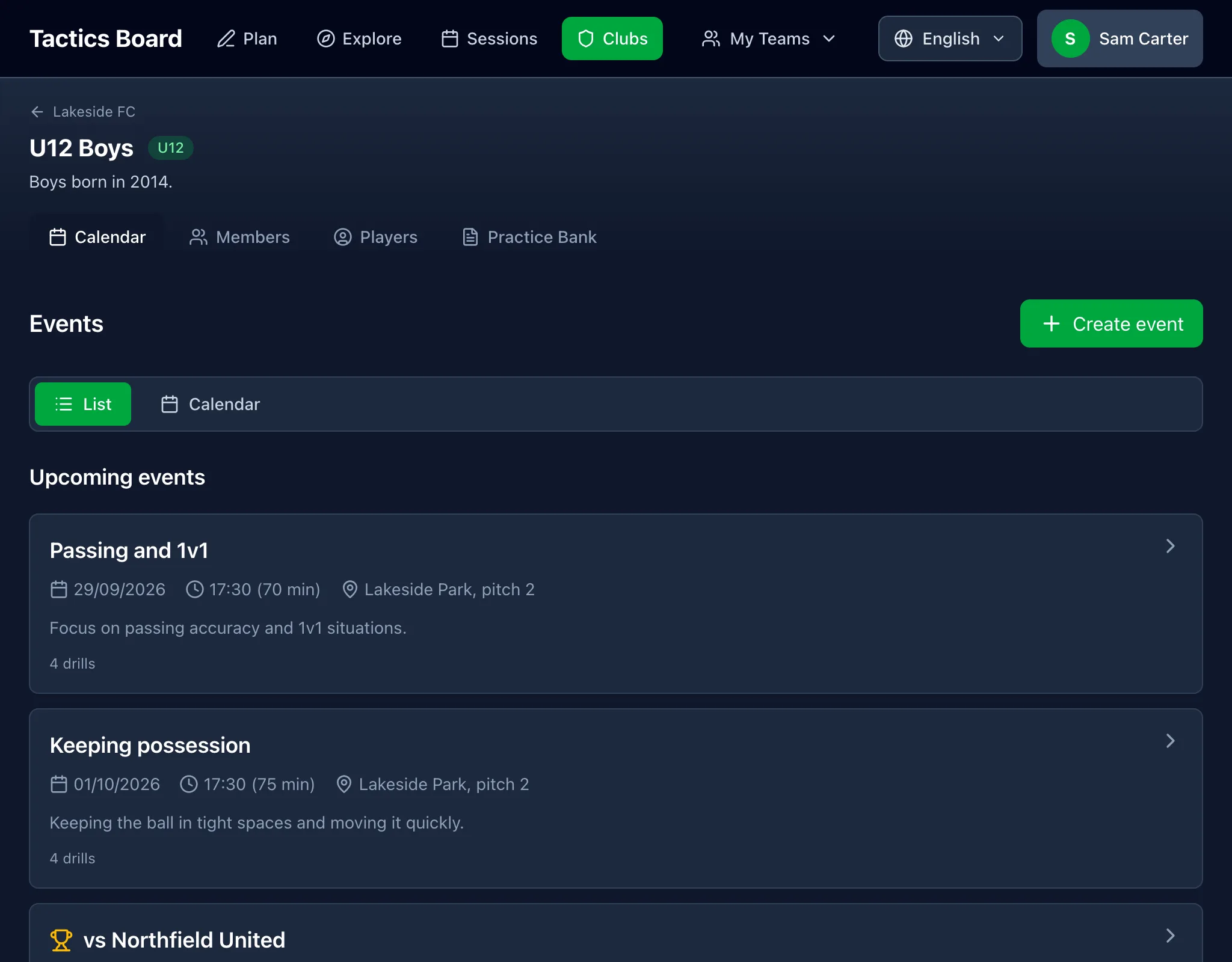
On the team's Calendar tab, "Create event" lets you choose a training session or a match. A session is built from drills, picked from your own, the team's, the club's or the public library, each with a duration. You can also drop in a plain text block, like a warm-up.
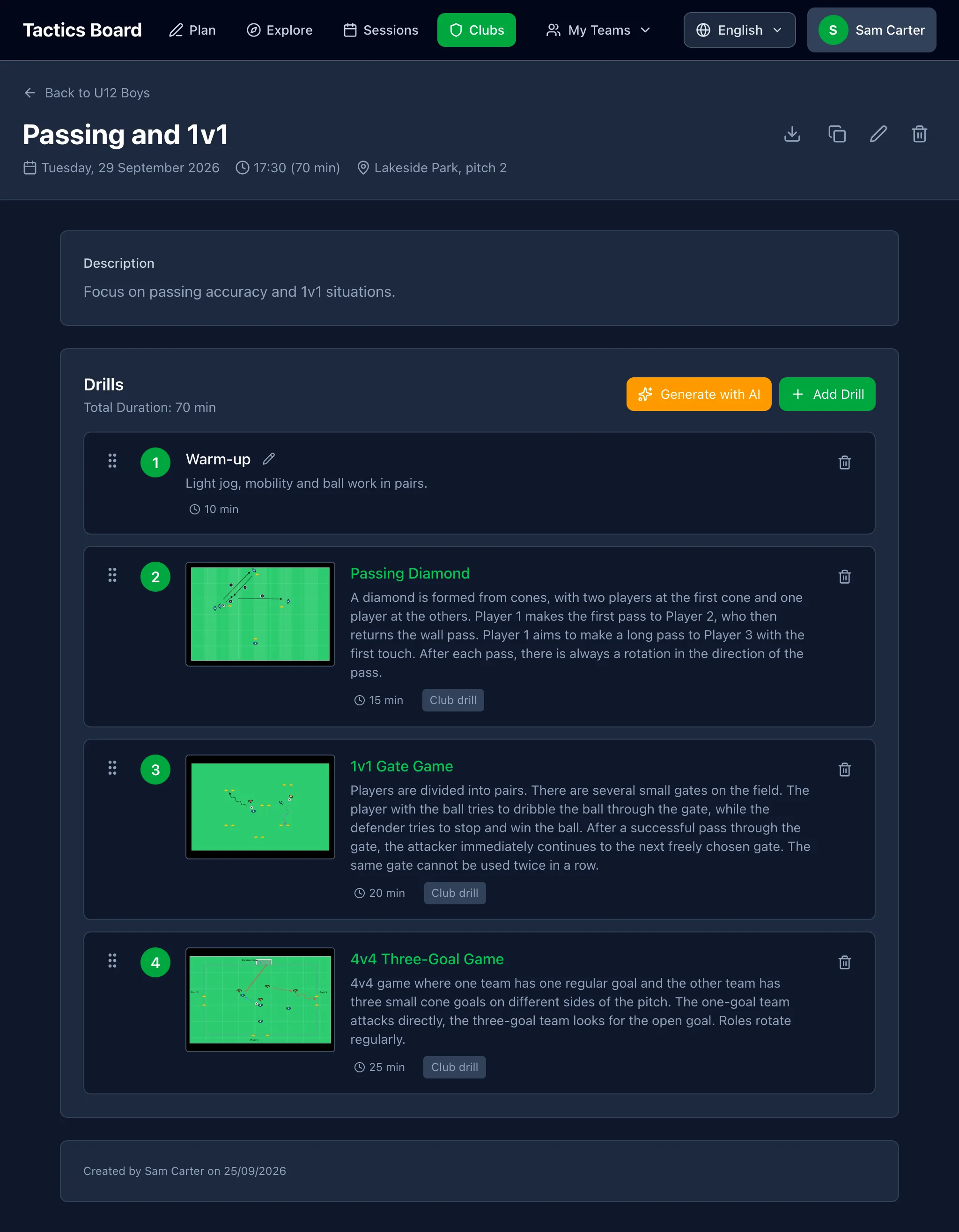
A finished session can be copied to a new date, and you can take a PDF of it to the pitch. On a free club, each team can have five events, sessions and matches together.
6. Matches and line-ups
For a match you enter the opponent, home or away, and the format (8v8 or 11v11). Pick a formation and the players take their places in roster order, with the rest on the bench. Drag players to move them around the pitch. The arrow button brings someone off the bench into a free spot. The notes field is handy for things like meeting time. Line-ups can be exported as an image or a PDF. There is more on matches in a separate post.
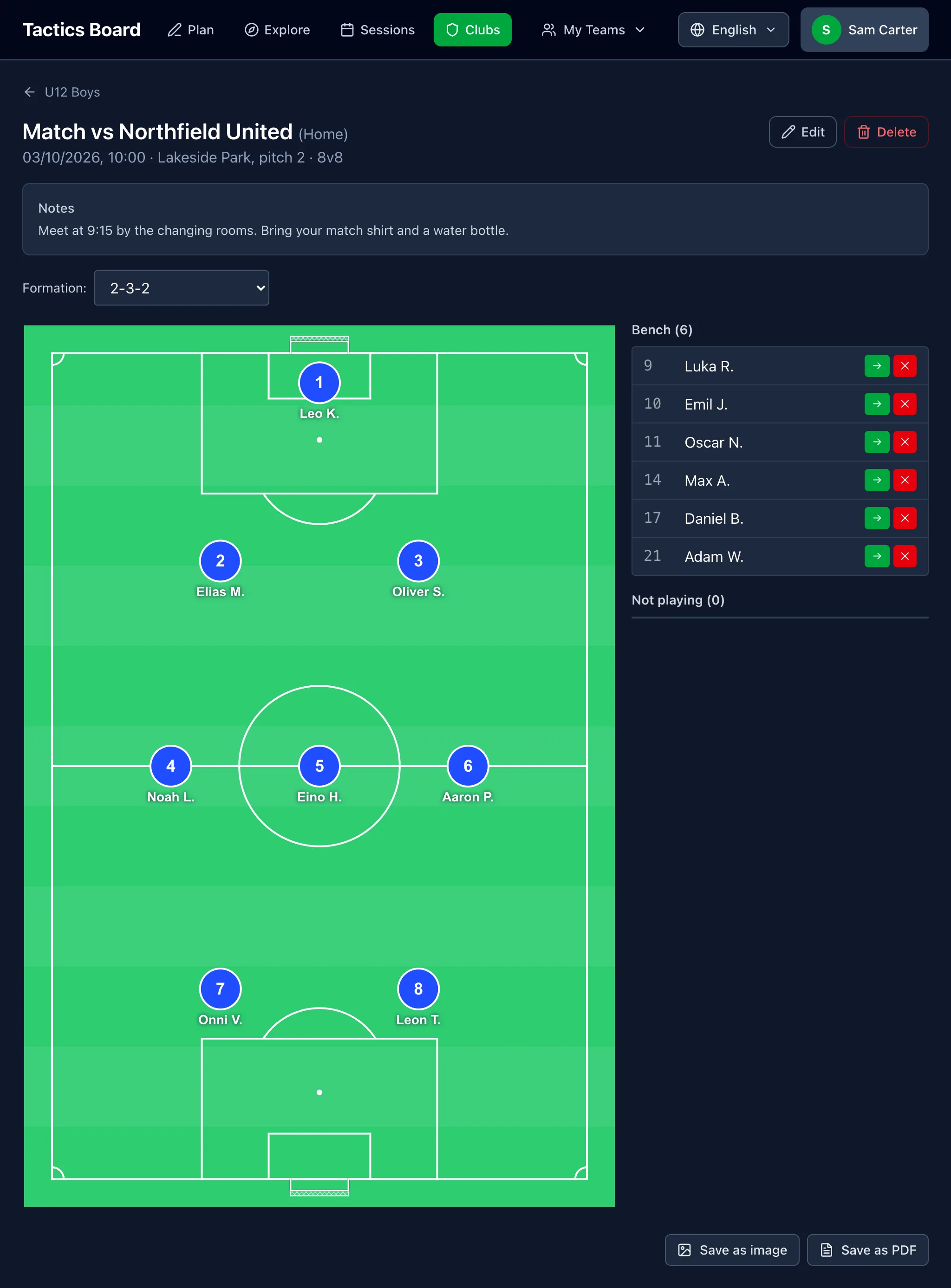
For line-ups, each team keeps a roster on its Players tab, with names and shirt numbers. Players don't need an account.
What it costs
Creating a club and getting started is free. A free club has up to three teams, unlimited members, the shared drill bank and five events per team. Paid club plans remove the event limit, give every coach the Premium features and put the club's own logo on exports. Plans and prices are on the pricing page.
Create your club and invite your first coach. It takes a few minutes.