How to animate a football drill: players, passes and runs
A drill diagram shows where the players stand and where the ball goes. It doesn't show the order things happen in, who moves first, or where a player goes after the pass. An animation does, and in TacticsBoard you build one a frame at a time.
Edit your own copy in TacticsBoard
When an animation helps and when a diagram is enough
Höffler and Leutner pooled 26 studies that compared animations with static pictures. Animations taught better on average, and the gap was widest when people were learning how to do something rather than facts (Learning and Instruction, 2007). That's what a drill is about: who passes to whom, and where to run next.
A review of studies on learning football and basketball scenes adds a caveat (Rekik et al., 2021). How much an animation helps depends on how much the player already knows and how complex the scene is. Beginners did better when a complex scene was shown in small steps and slowed down. In simple scenes, slowing down made no difference. For more experienced players, the same aids were useless or even got in the way.
In practice: animate drills where order and timing matter, like a passing pattern, a rotation or a game situation. A plain area with two goals doesn't need one.
How an animation is built from frames
An animation is a series of frames. Each frame is its own picture of the pitch, and on playback players and the ball glide from one frame to the next. Movement between two frames is always a straight line. Pass and run arrows grow from start to end, and anything new fades in.
The first frame is the starting position. That's why it pays to draw the drill as a diagram first, with players, balls, cones and areas in place. When you open the animation for the first time, the diagram is copied into Frame 1.
How to start an animation on a computer or a phone
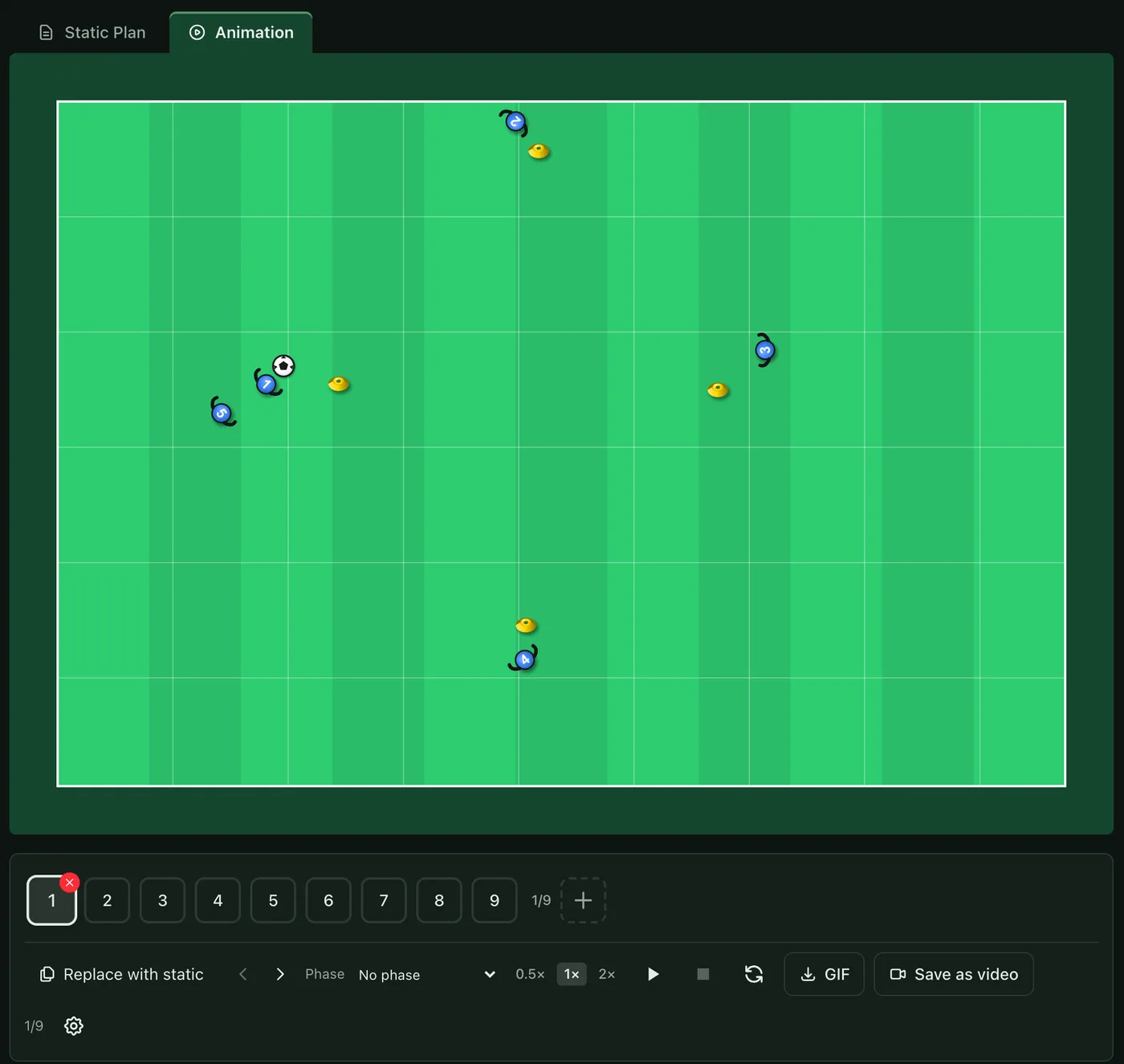
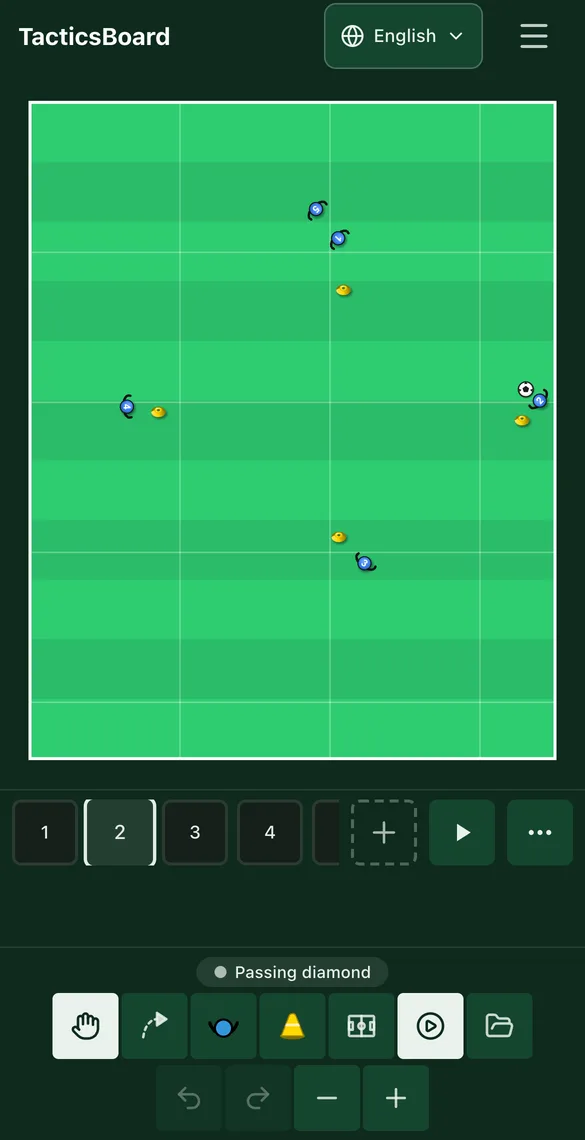
On a computer there are two tabs above the pitch: Static Plan and Animation. Pick Animation and a frame strip appears under the pitch. On a phone, the play icon in the bottom toolbar opens the animation, and the frame strip appears under the pitch in the same way.
Animation is part of Premium and the club plans. A free account can draw drills and watch the animations in the library, but can't make its own.
How to move a player from one frame to the next
You make a new frame by copying the previous one. Select a frame in the strip and press the plus button at the end of the strip (Duplicate Frame). The copy goes right after the selected frame, with everything in the same place. Then move the players who move in this step. Your changes go into whichever frame is selected.

You can turn a player with the rotate handle. It snaps every 45 degrees, and on playback the player turns the short way round. Turn a running player to face where they're going, and a waiting player to face the play.
Play needs at least two frames. On a computer, the arrow keys step between frames and the space bar starts and stops playback.
How to pass the ball in an animation
There's no separate pass action. You make a pass by putting the ball at the receiver's feet in the next frame. On playback the ball travels at a steady speed straight from passer to receiver and leaves a short trail behind it.
For a pass into a player's run, do both in the same frame: move the receiver to the new spot and put the ball at their feet. The ball and the player then arrive at the same time. That's how the one-two in the passing diamond's third frame works: player 1 moves forward and the ball comes back to their feet.
How a player dribbles with the ball
If the ball is at the same player's feet at both the start and the end of a step, it travels with them the whole way. Just move the player and the ball together to the new spot. The ball stays on the same side of the player and turns with them if they change direction. This works for defenders, goalkeepers and jokers too.
A ball that doesn't move belongs to nobody. A player can run past a ball without taking it along.
How to make a player run a curved route
Since movement between two frames is straight, a curve takes extra frames in between. Split the run into two or three parts and move the player a bit further along the curve in each frame. On playback the speed carries over from one frame to the next, so the player doesn't stop at every point.
The rotation in the passing diamond is done this way. The players move to the next cone over three frames, and the route of the player starting at the top curves because their position shifts in a slightly different direction in each frame.
How to set the speed and pauses
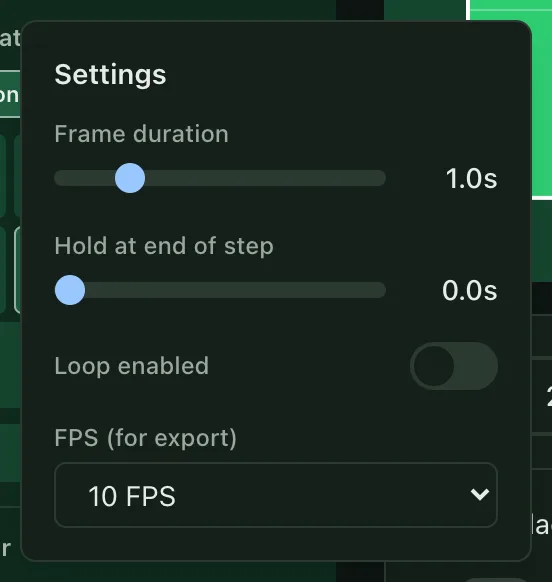
The Settings gear holds the settings for the whole animation. Frame duration defaults to one second and goes from half a second to three. Hold at end of step stops the picture briefly after each frame, which gives viewers time to see what just happened. You can turn on Loop in the same menu.
You can change a single frame's speed with the Step speed buttons (0.5×, 1× and 2×). A long pass or run looks more natural slower, a quick first-time pass faster. A frame with a changed speed gets a badge in the strip.

How to show the wrong and the right way
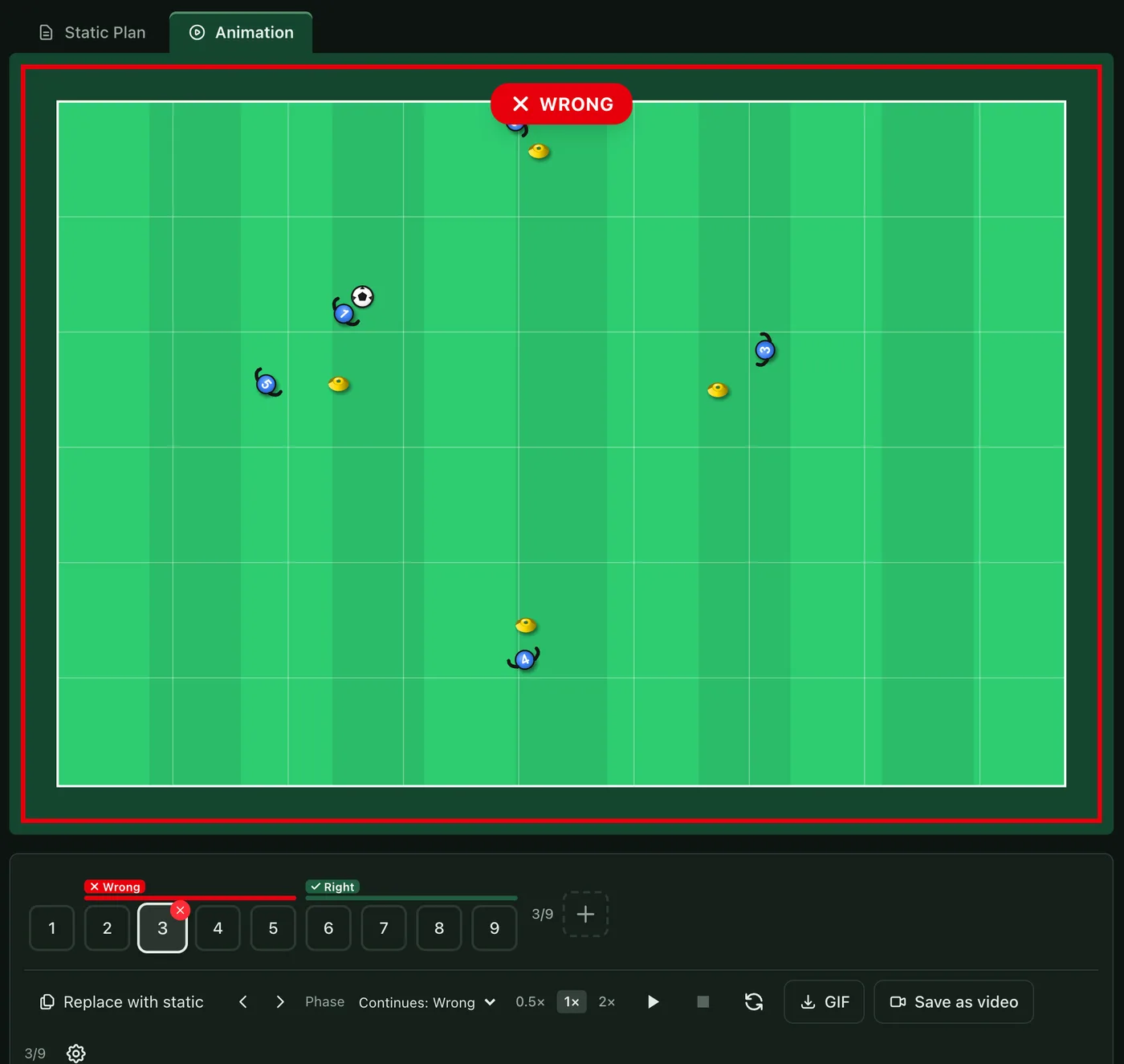
In the Phase menu you pick the frame where the wrong or the right solution starts. A phase runs until the next one starts, and the strip shows a red or green bar over it. That way one animation can show a common mistake first and then a better option, for example a player standing still watching the ball and then moving away into space. The label shows over the pitch. A wrong phase can take a short note on why it's wrong.
How to reorder, copy and delete frames
On a computer you can drag frames in the strip into a new order. The arrow buttons move the selected frame left or right, and on a phone you'll find them under More controls. Delete frame removes the selected frame. If the frame has anything on it, you're asked to confirm, because a delete can't be undone.
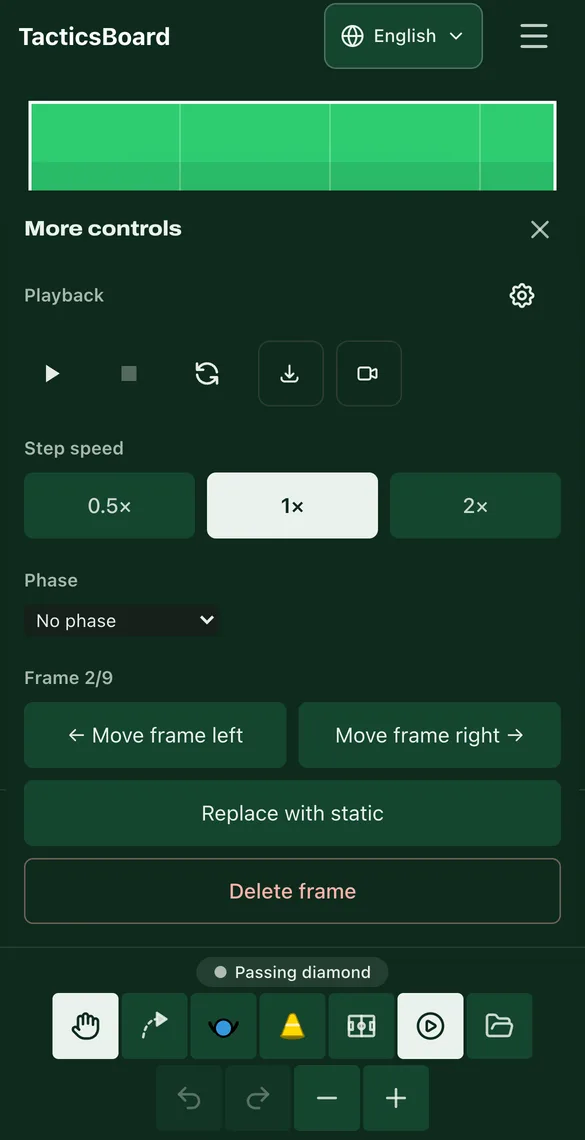
Replace with static swaps Frame 1 for the current diagram. It's handy if you've changed the diagram after making the animation and want the starting position up to date.
How to save an animation as a video or a GIF
Next to the playback controls there are two save buttons: GIF and Save as video. The video is an MP4 you can send on WhatsApp and other messaging apps. A GIF works in email, and you can save one even in a browser that can't make video. The settings let you pick the frame rate for saving. On a phone, the save buttons are on the Playback row under More controls.
Send the video to your players before the session. If they've already seen the rotation at home, you spend less time explaining it on the pitch.
Tips for a clear animation
- One idea per animation. If a drill has two patterns, make two animations. A complex scene is easier for a beginner in small pieces.
- One event per frame: a pass, a run or a turn. Viewers can keep up, and you can set the speed one frame at a time.
- Slow down only the hard part. In the review, slowing down helped in complex scenes but not in simple ones. Put 0.5× on the key frame, not the whole animation.
- Number your players. Then the instructions can say "player 1 passes to player 2" and the animation shows exactly that.
- Fewer aids for older players. Experienced players didn't gain from small steps or slow motion, so the pattern at normal speed is enough.
You'll find ready-made animations in the drill library. You can copy any of them and change it to suit your own team.